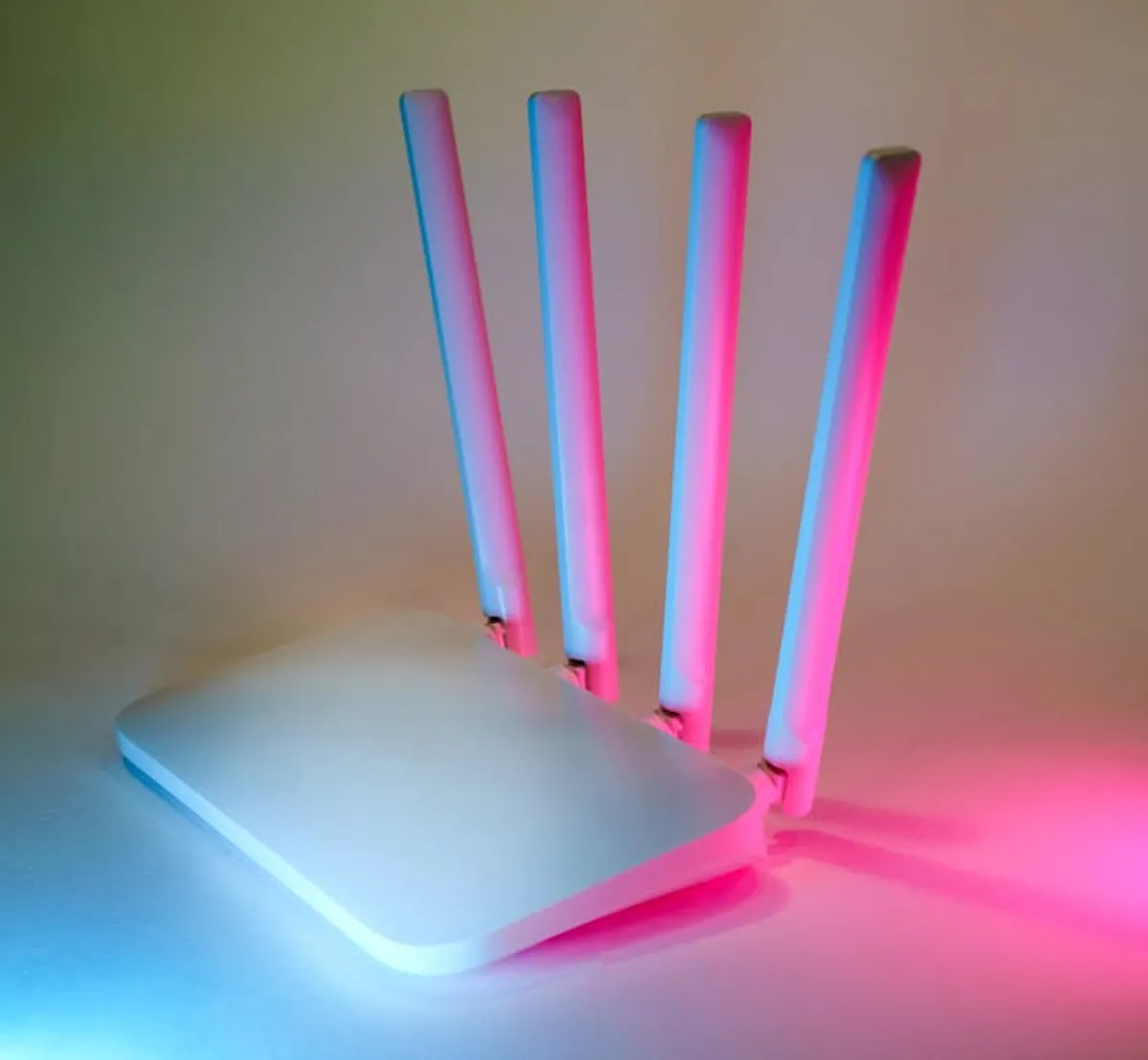
The router serves as the primary gateway between your home network and the internet, making its login security a foundational element of your overall digital defense. Overlooking this critical access point leaves your entire network vulnerable to unauthorized access, potential data breaches, and malicious attacks. Securing your router login isn't merely about protecting a device; it's about safeguarding every connected smart device, personal computer, and confidential data stream within your home. This guide details the essential steps and ongoing practices required to fortify your router's defenses, ensuring your private network remains private and your online activities secure. This guide details the essential steps and ongoing practices required to fortify your router's de and improve its overall security posture, especially when dealing with its admin login.
Understanding Router Login Vulnerabilities
Router login credentials are the keys to your home network's control panel. If these keys are compromised, an attacker can manipulate your network settings, redirect your internet traffic, or even install malicious software. Understanding the common weaknesses is the first step toward building robust security.
Default Credentials as Entry Points
Many routers ship with generic, easily guessable default usernames and passwords (e.g., "admin/admin," "admin/password," or "root/root"). Manufacturers often use these for initial setup convenience. However, these defaults are widely known and frequently published online, making them a prime target for automated scanning tools used by malicious actors. If left unchanged, these credentials offer an open invitation to unauthorized access, allowing anyone with basic knowledge to log into your router's administrative interface and alter its configuration.
Outdated Firmware Risks
Router firmware is the operating system that controls its functions. Like any software, firmware can contain vulnerabilities or bugs that, if unpatched, can be exploited. Manufacturers regularly release firmware updates to address security flaws, improve performance, and add new features. Neglecting these updates leaves your router exposed to known exploits, potentially allowing an attacker to bypass security measures, gain administrative control, or inject malware that compromises your network's integrity without needing your login credentials.
Weak Wi-Fi Passwords and Encryption
While distinct from the router's administrative login, weak Wi-Fi passwords and outdated encryption protocols (like WEP or older WPA versions) indirectly compromise your router's security. A weak Wi-Fi password makes it easier for an attacker to join your network. Once connected, they can then attempt to discover your router's IP address and potentially exploit other vulnerabilities to gain access to the router's login page. Using robust encryption like WPA2-PSK (AES) or WPA3 is crucial for securing the wireless communication channel, preventing eavesdropping and unauthorized network access.
Essential Steps to Secure Your Router Login
Implementing a layered security approach for your router involves several key actions, each designed to close potential entry points and strengthen your network's perimeter.
Change Default Login Credentials Immediately
This is the single most critical step. Upon setting up a new router or after a factory reset, the very first action should be to change the default username and password for the administrative interface. Opt for a unique, complex password that combines uppercase and lowercase letters, numbers, and symbols. Avoid using personal information, common phrases, or easily guessable sequences. Some routers also allow you to change the default username, adding another layer of obscurity.
Pro Tip: Document your new router login credentials securely. Use a reputable password manager to store this information, ensuring it's accessible only to you and not written down in an easily discoverable location. A factory reset is often the only recovery method if you forget these credentials, which means reconfiguring your entire network.
Update Router Firmware Regularly
Check your router manufacturer's website periodically for firmware updates. Most modern routers offer an option within their administrative interface to check for and install updates directly. If your router does not support automatic updates, download the latest firmware file from the official manufacturer's support page and follow their specific instructions for manual installation. This process typically involves logging into the router, navigating to a "Firmware Update" or "Maintenance" section, and uploading the file. Always ensure your router is connected via an Ethernet cable during a firmware update to prevent interruption.
Implement Strong Wi-Fi Security (WPA3/WPA2)
Configure your Wi-Fi network to use the strongest available encryption protocol. WPA3 is the current standard, offering enhanced security features. If your devices or router do not support WPA3, ensure you are using WPA2-PSK with AES encryption. Avoid WEP and WPA (TKIP) as these protocols have known vulnerabilities. Your Wi-Fi password (the one used to connect devices to your network, not the router login) should also be long, complex, and unique, distinct from your router's administrative password.
- WPA3: Offers the highest level of security, including individualized data encryption.
- WPA2-PSK (AES): A strong and widely compatible standard. Ensure AES is selected over TKIP.
- Strong Wi-Fi Password: Use a passphrase of at least 12-16 characters, combining different character types.
Disable Remote Management (WAN Access)
Many routers include a feature called "Remote Management" or "WAN Access," which allows you to log into your router's administrative interface from outside your home network, typically over the internet. While convenient for some advanced users, this feature presents a significant security risk. Unless absolutely necessary, disable remote management to prevent external access attempts. This setting is usually found in the "Administration," "Security," or "Advanced Settings" section of your router's interface.
Use a Guest Network for Visitors
Most modern routers support creating a separate guest Wi-Fi network. This network operates independently from your primary network, isolating guest devices from your personal computers, smart home devices, and network-attached storage. Providing guests with access to a dedicated guest network prevents them from potentially introducing malware to your main network or attempting to access your internal resources. Configure the guest network with its own strong password and consider enabling client isolation if available.
Review Connected Devices
Periodically log into your router's interface and review the list of connected devices. Most routers provide a "Connected Devices" or "DHCP Client List" section. This allows you to identify any unfamiliar devices that might have gained unauthorized access to your network. If you spot an unknown device, you can often block its MAC address from connecting in the future, then change your Wi-Fi password immediately.
Consider a VPN (Virtual Private Network)
While a VPN doesn't directly secure your router's login, it adds an essential layer of privacy and security to your internet traffic. A VPN encrypts your data connection from your device to a VPN server, masking your IP address and protecting your online activities from monitoring, even if your router's external security were somehow compromised. Some advanced routers can even be configured to run a VPN client directly, protecting all devices on the network automatically.
Practical Security Measures for Home Networks
Maintaining a secure home network is an ongoing process, not a one-time setup. Consistent vigilance and periodic checks are crucial to adapting to new threats and ensuring your defenses remain robust.
Regularly review your router's security settings. This includes verifying that remote management remains disabled, checking for available firmware updates, and ensuring your Wi-Fi security protocols are still set to the strongest options. Additionally, consider enabling any built-in firewall features your router offers, which can filter incoming and outgoing network traffic based on predefined rules, adding an extra layer of protection against unauthorized access attempts. Be mindful of Universal Plug and Play (UPnP) settings; while convenient for some devices, UPnP can open ports automatically, potentially creating security vulnerabilities. Disable UPnP unless a specific application absolutely requires it, and even then, consider manual port forwarding as a more secure alternative.
Frequently Asked Questions
How often should I change my router login password?
It's advisable to change your router's administrative login password at least once a year, or immediately if you suspect any unauthorized access or have shared the password with anyone. A strong, unique password is key.
What if I forget my router login password?
If you forget your router's login credentials, you will typically need to perform a factory reset. This restores the router to its default settings, including the original default username and password. You will then need to reconfigure your entire network, including Wi-Fi settings, from scratch.
Is it safe to enable automatic firmware updates on my router?
For most home users, enabling automatic firmware updates is a secure and convenient practice. It ensures your router receives critical security patches promptly. However, always ensure the updates are coming from the legitimate manufacturer's servers to avoid malicious firmware.
Should I hide my Wi-Fi network name (SSID)?
Hiding your Wi-Fi network name (SSID broadcast) offers minimal security benefit and can sometimes cause compatibility issues with certain devices. It does not prevent a determined attacker from discovering your network. Focusing on strong WPA2/WPA3 encryption and a complex Wi-Fi password provides much more effective security.